Test without a real camera
Use this path when you want to validate the first camera and live viewing loop without depending on a real IP camera.
The default recipe uses the bundled static image. It is the most reproducible Alpha onboarding path. After that works, use a video file loop or a local webcam when you need motion, detection, tracking, or hardware-like development input.
This is a development and onboarding utility. It does not replace a real camera installation. It gives you a predictable RTSP source so you can confirm Docker, streaming, source publishing, and browser playback before adding real hardware. It is not a people-detection test by itself.
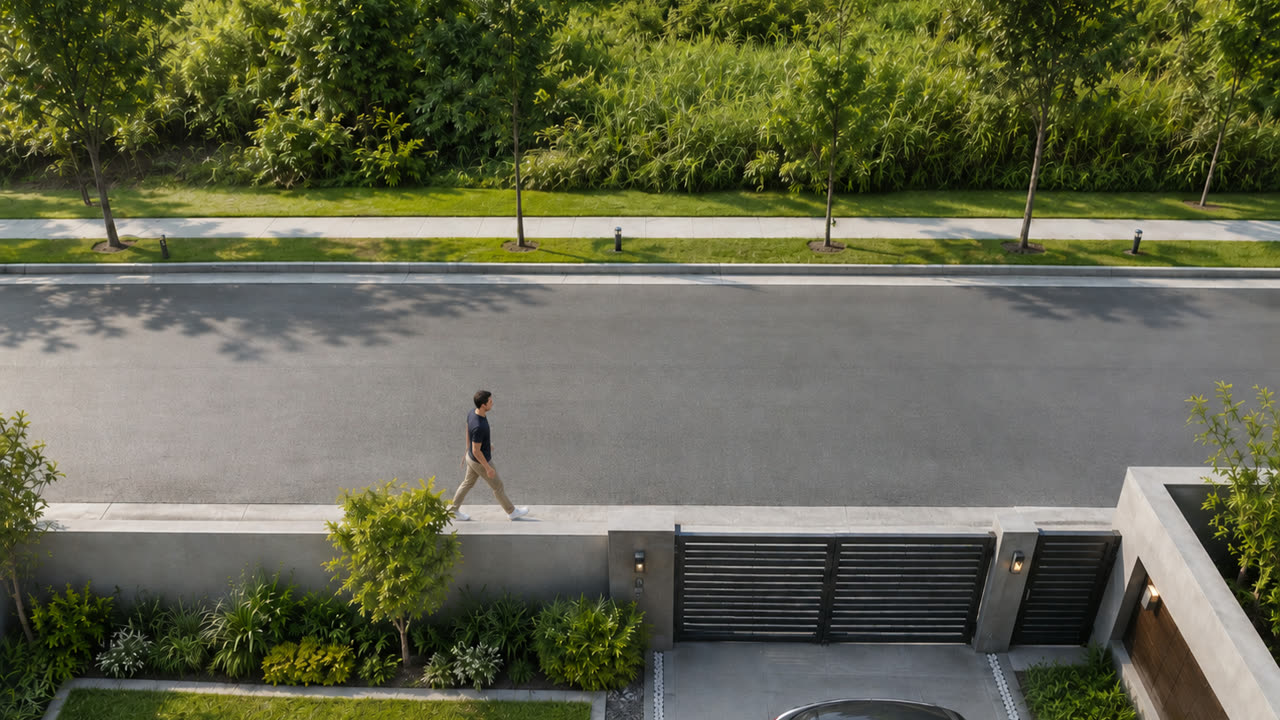
Start the synthetic RTSP camera
In one terminal, from the repository root:
npm run dev:rtsp-image -- --expose docker
The command publishes the bundled placeholder image as H.264 RTSP and prints a URL like:
rtsp://host.docker.internal:8554/toposync-sample-image
Leave this command running while you test Toposync.
If you want to use your own image:
npm run dev:rtsp-image -- /path/to/image.jpg --expose docker
Start Docker with streaming
In another terminal, from the repository root:
docker compose up -d
The current Compose file uses the default Toposync Docker image. That image includes streaming support, so no extra build arguments are needed for this onboarding path.
Open Toposync:
http://127.0.0.1:8000/
Complete the first-user setup if this is a new data directory.
Advanced: local build
Use the local build path only when you are developing Toposync from a repository checkout or testing unpublished changes:
docker compose -f docker-compose.yml -f docker-compose.local-build.yml up -d --build
Do not use the old streaming build environment variables for this guide. They belonged to the previous local-image workflow and are not part of the normal Compose path.
Start streaming
In Toposync:
- Open Settings.
- Open Transmissions.
- Open the Advanced tab.
- Click Start in Engine (MediaMTX).
- Wait until the engine status is running.
Add the RTSP source
In Toposync:
- Open Settings.
- Open Cameras.
- Select Add manual.
- Name the camera, for example
Synthetic RTSP camera. - Add an RTSP source.
- Paste the RTSP URL printed by the script.
- Set the source role to Main.
- Run Probe.
- Run Snapshot.
- Confirm Transmit this source is enabled. New video sources enable it by default.
- Save the camera.
The source should probe as H.264 video at 1280x720. The snapshot should show
the placeholder street image.
Generate live publications
In Toposync:
- Open Settings.
- Open Transmissions.
- Open the Live tab.
- If no live publication appears, click Reconcile streams.
- Confirm the synthetic camera appears in the live publications list.
Confirm live viewing
Open the render mode menu and choose Live cameras.
Expected result:
- the camera card appears;
- the state changes through warmup if needed;
- the card reaches Live;
- the video plays in the browser.
A short warmup is normal. If the card stays stale or says no pipeline is feeding the transmission, go back to Settings > Transmissions, confirm the engine is running, and click Reconcile streams in the Live tab.
What this test proves
The static image path proves the camera transport loop:
- Toposync can reach the RTSP URL from its runtime;
- probe and snapshot work;
- the source can be published for live viewing;
- browser playback works;
- after mapping, calibration and 360 View projection can be checked against a stable frame.
It does not prove real person detection, tracking, notifications, or pins. A still image may never pass a motion-gated pipeline, and it does not prove that a detection model is prepared on the selected processing server.
Use a video loop, webcam, or real camera when you need motion and model-based detection. For product or lab validation of mapping -> tracking -> notify -> pin without RF-DETR, use the deterministic synthetic detection smoke instead of seeding data directly.
Other development camera sources
Keep the static image as the first onboarding test. Use the alternatives below after the first live-view loop works, or when you need a source that behaves more like real camera footage.
Static image
Use this for a deterministic first camera, Docker, streaming, and browser playback smoke test:
npm run dev:rtsp-image -- --expose docker
The script uses the bundled placeholder image by default. Pass an image path when you want a different still frame:
npm run dev:rtsp-image -- /path/to/image.jpg --expose docker
Video file loop
Use this when you need motion for detection, tracking, models, or pipeline smoke tests:
npm run dev:rtsp-video -- --video /path/to/video.mp4 --expose docker
The video file loops until you stop the command. Use files you are allowed to use and avoid committing private or sensitive footage to the repository.
Local webcam
Use this when you want a real local camera during development:
npm run dev:camera-rtsp -- --list-only
Then select the camera by printed index, backend identifier, exact name, or a unique name fragment:
npm run dev:camera-rtsp -- --camera 0
For Toposync running in Docker Desktop, expose the webcam RTSP server on the host and advertise a host address the container can resolve:
npm run dev:camera-rtsp -- --camera 0 --expose network --host host.docker.internal
For Linux Docker or another runtime on the network, use the host LAN address:
npm run dev:camera-rtsp -- --camera 0 --expose network --host <host-ip>
The webcam path is less reproducible than the image or video scripts. It can depend on operating system camera permissions, available drivers, and device capture modes.
Which exposure mode should I use?
For the image and video scripts, use the mode that matches where Toposync runs:
| Toposync runtime | RTSP script mode | URL shape |
|---|---|---|
| Toposync runs directly on this host | --expose local | rtsp://127.0.0.1:8554/... |
| Docker Desktop on macOS or Windows | --expose docker | rtsp://host.docker.internal:8554/... |
| Linux Docker or another LAN machine | --expose network --host <host-ip> | rtsp://<host-ip>:8554/... |
Do not use 127.0.0.1 inside Docker unless the RTSP server is running in the
same container. From a Toposync container, 127.0.0.1 means the Toposync
container itself, not your host machine.
Network exposure has no viewer password. Use it only on a trusted development LAN.
The webcam script supports --expose local and --expose network. For Docker
Desktop, use network exposure with --host host.docker.internal; for Linux
Docker, use network exposure with the host LAN IP address.
Move to a real camera
After this loop works, replace the synthetic URL with your real camera, NVR, Frigate, or go2rtc RTSP URL.
Keep the same validation order:
- Probe.
- Snapshot.
- Confirm Transmit this source is enabled.
- Reconcile live publications.
- Confirm Live cameras.
- Add mapping and pipelines only after live viewing is stable.